
Stock Transfer Mobile App
Introduction
Stock Transfer Mobile App
Basic Concepts
User Interface
Step-by-Step Guide to the App
Login
Manually entering your login credentials
Scanning Your Personal QR Code
Instructions for transferring stock by scanning a handling unit
Step 1: Create new Stock Transfer Order
Step 2: Scan Handling Unit
Step 3: Please Withdraw Screen
Step 4: Please move Inventory
Step 5: Move inventory completed
Instructions for transferring stock by scanning a bin location
Step 1: Create new Stock Transfer Order
Step 2: Scan Bin Location
Step 3: Move Inventory Screen
Step 4: Please Withdraw Screen move Inventory
Step 5: Please move inventory
Step 6: Move inventory completed
Introduction
Stock Transfer Mobile App
The Stock Transfer Mobile App is one of the Bitergo WMS utility apps and it lets you transfer/relocate handling units within the warehouse.
Basic Concepts
In order to transfer a handling unit, you can choose between selecting a specific handling unit directly or selecting a specific bin location on which one or more handling units are stored and then selecting one of the handling units to transfer it.
After having selected a handling unit the app will suggest a new bin location for relocation. Relocate the handling unit to the new location and scan the bin location code to confirm the stock transfer. Repeat the process for the other handling units you wish to relocate.
User Interface
The Stock Transfer Mobile App uses the standard Bitergo WMS mobile app user interface. For more details, see the document on User Interface and User Experience.
Step-by-Step Guide to the App
Login
You can log in to the app in two ways:
- by manually entering your user credentials
- by scanning your personal QR code from the Bitergo WMS user portal
Manually entering your login credentials
In the "User" field, enter the email address you used to register with Bitergo WMS, and in the "Password" field, enter your password. Click the "Login" button to log in to the system. You will be logged in and redirected to the app’s home screen. If necessary, you can use the "Change Server" button to manually enter or change the server address of your Bitergo WMS.
Scanning Your Personal QR Code
Click the QR code icon to open the camera. Log in to the user portal using a browser on another device and scan your personal QR code with the camera. It contains your user information, password, and the server address. As soon as the QR code is scanned, you will be logged in and redirected to the app's home screen.
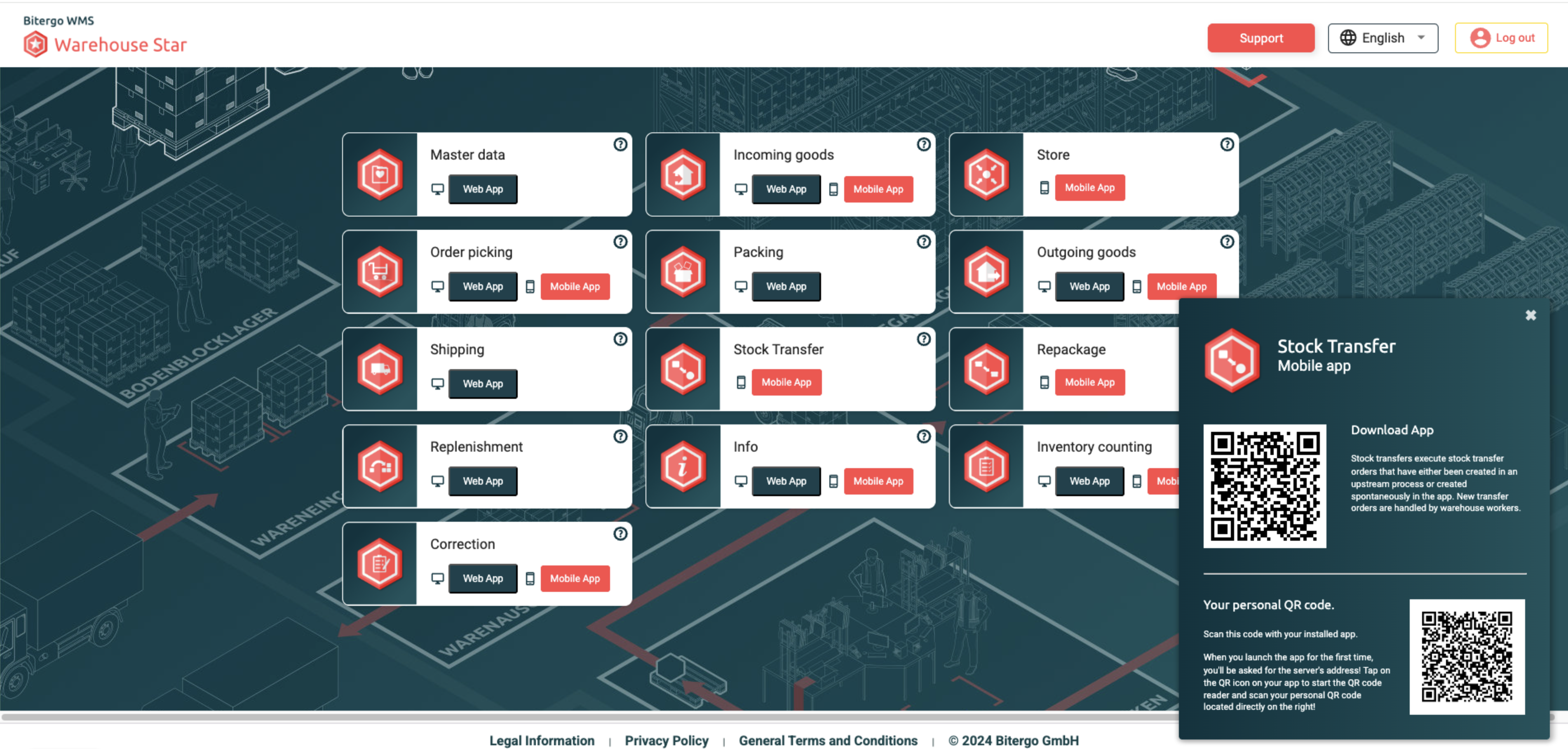
Instructions for transferring stock by scanning a handling unit
Step 1: Create new Stock Transfer Order
Press the add button in the right corner at the bottom of the screen to create a new Stock transfer Order.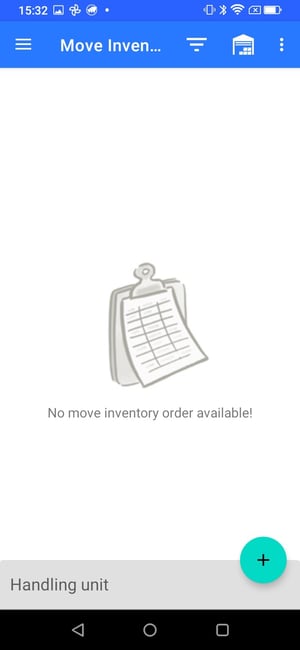
Step 2: Scan Handling Unit
A dialog appears called "Search handling unit by:" where you can choose between scanning a handling unit or scanning a bin location to start the relocation / Stock transfer process. Select Handling Unit. Scan the handling unit code of the handling unit you wish to transfer / relocate in the warehouse. Press OK to continue.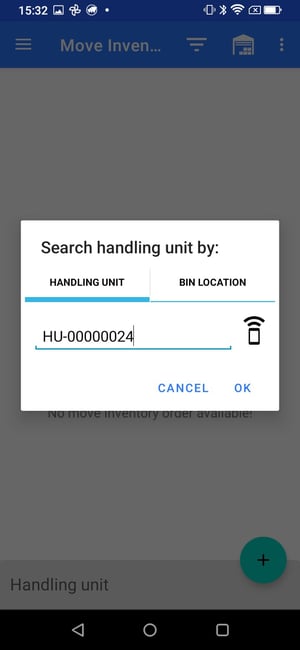
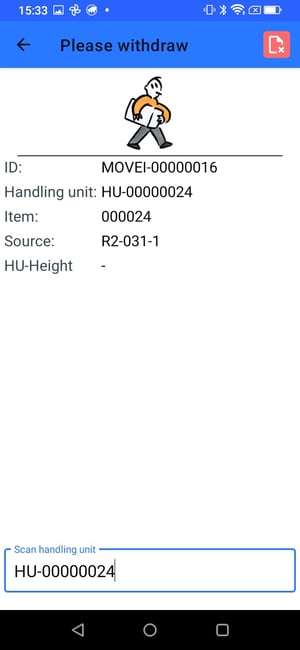
Step 3: Please Withdraw Screen
After having scanned the handling unit the "Please Withdraw" Screen appears. Here all the details for the newly created transfer order are displayed:
- ID
- Handling Unit Number
- Item
- Source
- Height
Underneath this information a handling unit number field is displayed. Scan the handling unit code with your mobile device to confirm the removal of the previously selected handling unit from its source bin location.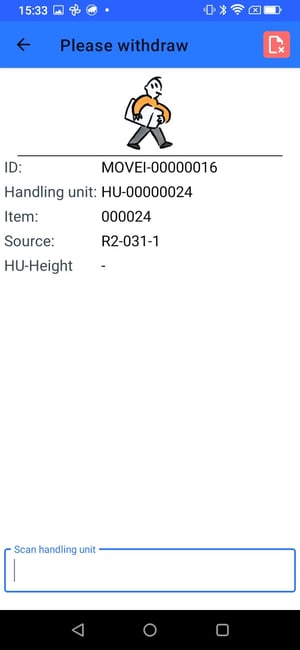
Step 4: Please move Inventory
The "Please move Inventory" Screen appears. The app suggests a new destination location for the Relocation/Stock Transfer of the handling unit.
Here all the details for the active transfer order are displayed including the destination bin location:
- ID
- Handling Unit Number
- Destination
- "Destination Full" checkbox
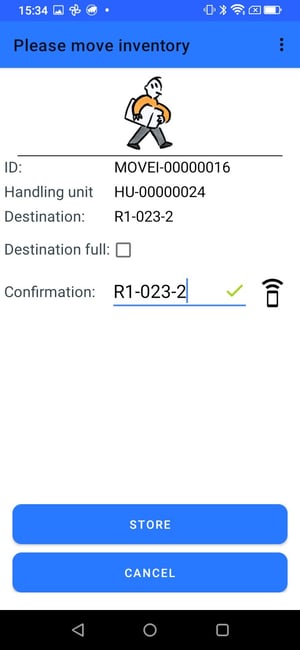
Underneath this information a confirmation field is displayed. Relocate the handling unit to the new bin location and scan the code of the new bin location with your mobile device. The number of the new bin location appears in the confirmation field. Press Store to confirm the storing of the handling unit in the new bin location.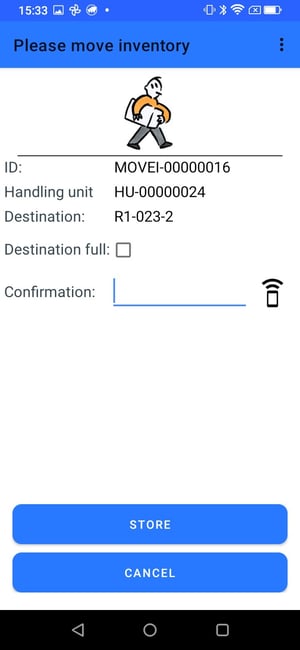
Step 5: Move inventory completed
The stock transfer is finished, and the app displays the message "Move inventory completed". The start screen appears.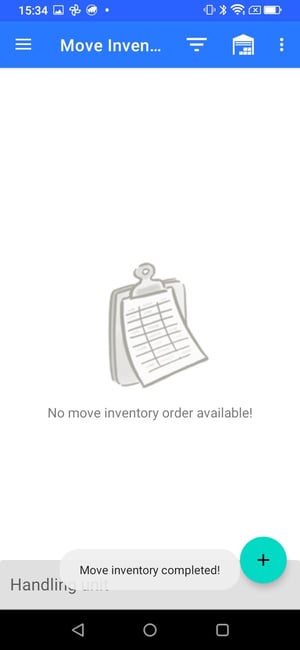
Instructions for transferring stock by scanning a bin location
Step 1: Create new Stock Transfer Order
Press the add button in the right corner at the bottom of the screen to create a new Stock transfer Order.
Step 2: Scan Bin Location
A dialog appears called "Search handling unit by:" where you can choose between scanning a handling unit or scanning a bin location to start the relocation / Stock transfer process. Select Bin Location. Scan the bin location code from which you wish to select a handling unit to transfer/relocate within the warehouse. Press OK to continue.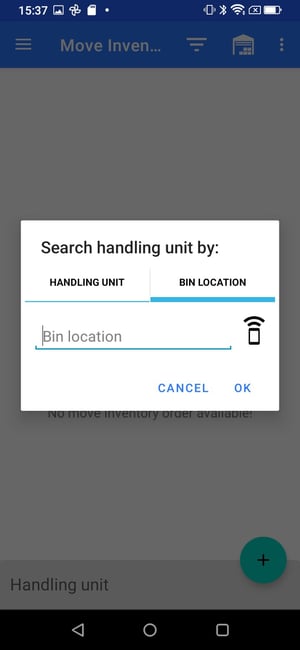
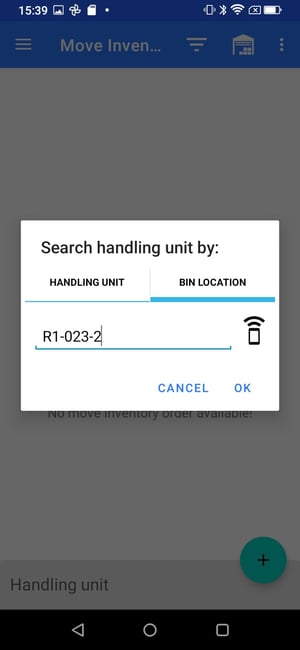
Step 3: Move Inventory Screen
After having scanned the bin location the "Move inventory" Screen appears.
A list of all the handling units stored at the selected bin location appears. For every handling unit the following information is displayed:
- Handling unit number
- Source Bin Location
- Type of Load support
- Items contained in the handling unit with item number, item description, item image, and quantity of the item on the handling unit
Select the handling unit you wish to relocate/transfer within the warehouse.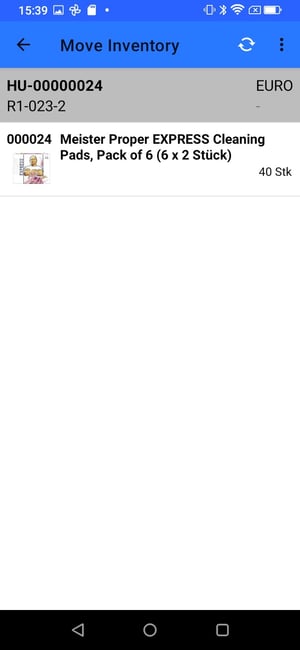
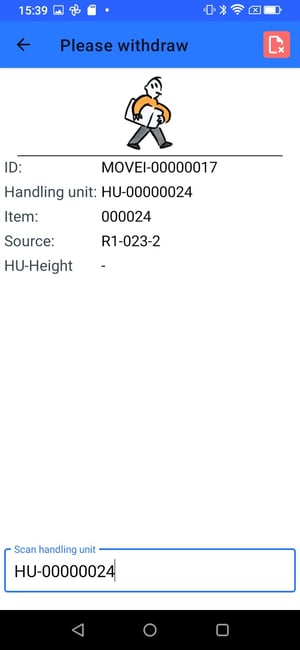
Step 4: Please Withdraw Screen move Inventory
After having scanned the bin location the "Move inventory" Screen appears. Here all the details for the newly created transfer order are displayed:
- ID
- Handling Unit Number
- Item
- Source
- Height
Underneath this information a handling unit number field is displayed. Scan the handling unit code with your mobile device to confirm the removal of the previously selected handling unit from its source bin location.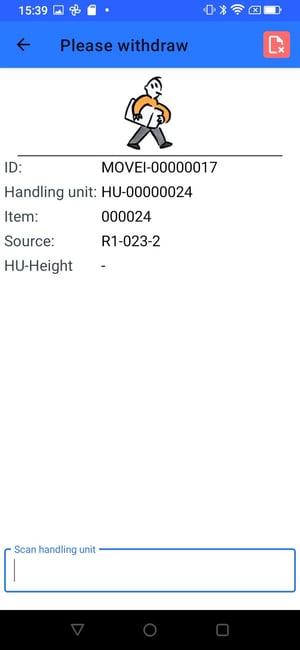
Step 5: Please move inventory
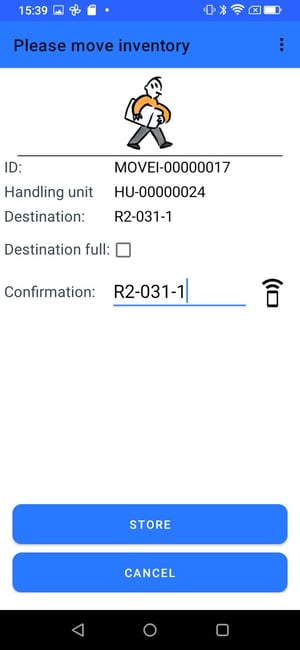
The "Please move Inventory" Screen appears. The app suggests a new destination location for the Relocation/Stock Transfer of the handling unit.
Here all the details for the active transfer order are displayed including the destination bin location:
- ID
- Handling Unit Number
- Destination
- "Destination Full" checkbox
Underneath these information a confirmation field is displayed. Relocate the handling unit to the new bin location and scan the code of the new bin location with your mobile device. The number of the new bin location appears in the confirmation field. Press Store to confirm the storing of the handling unit in the new bin location.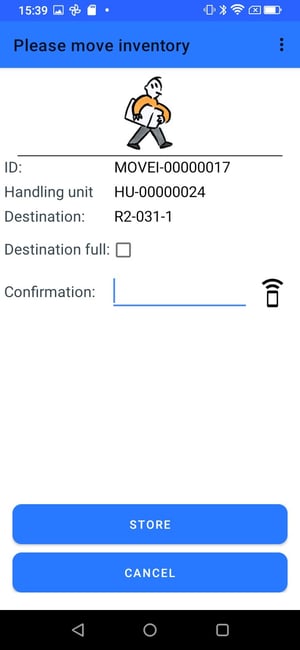
Step 6: Move inventory completed
The stock transfer is finished, and the app displays the message "Move inventory completed". The start screen appears.